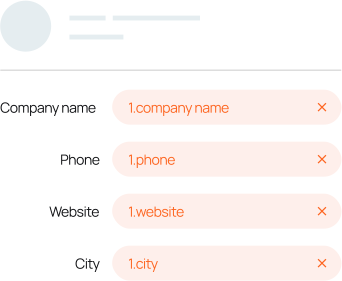
Integrate Azure DevOps to Microsoft Excel in one click, or tell Integrately AI how you want each work item handled. Log work items into your spreadsheets, track project metrics, update tables, and generate reports automatically.
Got a different automation in mind? Describe it and let Integrately AI build it for you.
Connect more apps to your Azure DevOps + Microsoft Excel flow
Send notifications, update issue trackers, and sync documentation the moment your spreadsheets and project boards change. Pick a combination and activate it in one click.
+
GitHub (8)
+
Slack (8)
+
Jira Software Cloud (8)
+
Confluence (8)
+
Microsoft Teams (8)
+
Google Drive (8)
A
M
G
Create a Microsoft Excel row when code is pushed in Azure DevOps, and create a release in GitHub.
Code pushes in Azure DevOps immediately log data in Microsoft Excel and trigger a release in GitHub without manual intervention.
A
M
G
When a work item is created in Azure DevOps, log it in Microsoft Excel, and open an issue in GitHub.
New work items appear in Microsoft Excel instantly while a corresponding issue is opened in GitHub for tracking.
A
M
G
When a build is completed in Azure DevOps, update the matching Microsoft Excel row, and create a pull request in GitHub.
Completed builds update your Microsoft Excel tracking sheet and automatically trigger a pull request in GitHub.
G
A
M
Create a work item in Azure DevOps for every new GitHub issue, and log it in Microsoft Excel.
New GitHub issues generate an Azure DevOps work item and record the entry in Microsoft Excel automatically.
A
M
G
If a code push in Azure DevOps contains a bug fix, log it in Microsoft Excel and create a milestone in GitHub.
Bug fix commits in Azure DevOps update your Microsoft Excel sheet and create a tracking milestone in GitHub.
A
M
G
When a work item is updated in Azure DevOps, update the Microsoft Excel row and close the associated GitHub issue.
Work item updates in Azure DevOps sync to Microsoft Excel and automatically close the linked GitHub issue.
A
M
G
Use Claude to summarise code pushed to git in Azure DevOps, log the summary in Microsoft Excel, and create a GitHub issue.
Claude generates a clear summary of Azure DevOps code pushes for your Microsoft Excel sheet and opens a GitHub issue.
A
M
G
S
When a work item is created in Azure DevOps, log it in Microsoft Excel, create a GitHub repository, and notify the team on Slack.
New Azure DevOps work items log in Microsoft Excel, set up a GitHub repository, and alert your team on Slack.
A
M
S
Create a Microsoft Excel row when a work item is created in Azure DevOps, and post the update in Slack.
New Azure DevOps work items log in Microsoft Excel and notify your team channel on Slack instantly.
A
S
M
Notify your engineering channel in Slack when a build is completed in Azure DevOps, and log it in Microsoft Excel.
Completed builds post alerts to Slack and record performance data in Microsoft Excel automatically.
A
M
S
When an Azure DevOps work item is updated, update the Microsoft Excel row and announce the change in Slack.
Work item changes update your Microsoft Excel sheet and post an announcement in Slack.
S
A
M
Create a work item in Azure DevOps for every flagged Slack message, and log it in Microsoft Excel.
Important Slack messages generate an Azure DevOps work item and log the task in Microsoft Excel.
A
M
S
If an Azure DevOps work item is marked high priority, log it in Microsoft Excel and alert the urgent channel in Slack.
High-priority Azure DevOps work items update your Microsoft Excel sheet and alert the urgent channel on Slack.
A
M
S
When an Azure DevOps build fails, update the Microsoft Excel row with the error and post an incident alert in Slack.
Failed Azure DevOps builds update your Microsoft Excel log and post an incident alert in Slack.
A
M
S
Use ChatGPT to review work items created in Azure DevOps, log the details in Microsoft Excel, and post a summary in Slack.
ChatGPT reviews new Azure DevOps work items, records the structured data in Microsoft Excel, and posts a briefing in Slack.
A
M
S
J
When a work item is created in Azure DevOps, log it in Microsoft Excel, post a Slack alert, and create a Jira issue.
New Azure DevOps work items update Microsoft Excel, alert your team on Slack, and create a Jira tracking issue.
A
M
J
Create a Microsoft Excel row when a work item is created in Azure DevOps, and create a Jira issue.
New Azure DevOps work items log in Microsoft Excel and automatically generate a corresponding Jira issue.
A
J
M
Notify the team in Jira Software Cloud when a build is completed in Azure DevOps, and log it in Microsoft Excel.
Completed builds update Jira Software Cloud tasks and record execution metrics in Microsoft Excel.
A
M
J
When an Azure DevOps work item is updated, update the Microsoft Excel row and update the Jira issue status.
Azure DevOps work item updates sync to Microsoft Excel and advance the linked Jira issue status.
A
J
M
Open a Jira issue for every new Azure DevOps comment, and log it in Microsoft Excel.
New comments in Azure DevOps generate a Jira issue and record the discussion details in Microsoft Excel.
A
M
J
If an Azure DevOps work item is critical, log it in Microsoft Excel and assign a Jira task.
Critical Azure DevOps work items update your Microsoft Excel sheet and assign an urgent Jira task.
A
M
J
When an Azure DevOps build succeeds, update the Microsoft Excel row and close the Jira epic.
Successful Azure DevOps builds update your Microsoft Excel sheet and automatically close the linked Jira epic.
A
M
J
Use Gemini to analyse work items in Azure DevOps, log the notes in Microsoft Excel, and create a Jira ticket.
Gemini analyses Azure DevOps work items, records the analysis in Microsoft Excel, and creates a Jira ticket.
A
M
J
S
When a work item is created in Azure DevOps, log it in Microsoft Excel, create a Jira issue, and send a Slack alert.
New Azure DevOps work items update Microsoft Excel, create a Jira issue, and notify your team on Slack.
A
M
C
Create a Microsoft Excel row when a work item is created in Azure DevOps, and create a Confluence page.
New Azure DevOps work items log in Microsoft Excel and generate a dedicated Confluence documentation page.
A
C
M
Post project updates to Confluence when a build is completed in Azure DevOps, and log them in Microsoft Excel.
Completed builds publish updates to Confluence and record performance data in Microsoft Excel.
A
M
C
When an Azure DevOps work item is updated, update the Microsoft Excel row and append notes to the Confluence page.
Azure DevOps work item changes update your Microsoft Excel sheet and append notes to your Confluence page.
C
A
M
Create an Azure DevOps work item for every Confluence task, and log it in Microsoft Excel.
New Confluence tasks generate an Azure DevOps work item and log the record in Microsoft Excel.
A
M
C
If an Azure DevOps work item is assigned for documentation, log it in Microsoft Excel and create a Confluence page.
Documentation work items in Azure DevOps update your Microsoft Excel sheet and create a new Confluence page.
A
M
C
When an Azure DevOps release is completed, update the Microsoft Excel row and archive the Confluence release page.
Completed Azure DevOps releases update your Microsoft Excel sheet and archive the corresponding Confluence page.
A
M
C
Use Claude to summarise Azure DevOps work items, log the summary in Microsoft Excel, and update a Confluence page.
Claude summarises Azure DevOps work items for your Microsoft Excel log and updates your Confluence documentation.
A
M
C
S
When a work item is created in Azure DevOps, log it in Microsoft Excel, create a Confluence page, and notify the team in Slack.
New Azure DevOps work items update Microsoft Excel, create a Confluence page, and post an alert in Slack.
A
M
M
Create a Microsoft Excel row when a work item is created in Azure DevOps, and send a message in Microsoft Teams.
New Azure DevOps work items log in Microsoft Excel and send an instant notification to Microsoft Teams.
A
M
M
Post an alert in Microsoft Teams when a build is completed in Azure DevOps, and log it in Microsoft Excel.
Completed builds post alerts to Microsoft Teams and record performance metrics in Microsoft Excel.
A
M
M
When an Azure DevOps work item is updated, update the Microsoft Excel row and post the change in Microsoft Teams.
Azure DevOps work item updates sync to Microsoft Excel and post a notification in Microsoft Teams.
M
A
M
Create a work item in Azure DevOps for every flagged Microsoft Teams message, and log it in Microsoft Excel.
Important Microsoft Teams messages generate an Azure DevOps work item and log the entry in Microsoft Excel.
A
M
M
If an Azure DevOps work item is urgent, log it in Microsoft Excel and notify the leadership channel in Microsoft Teams.
Urgent Azure DevOps work items update your Microsoft Excel sheet and notify leadership on Microsoft Teams.
A
M
M
When an Azure DevOps build fails, update the Microsoft Excel row and post an incident report in Microsoft Teams.
Failed Azure DevOps builds update your Microsoft Excel log and post an incident report in Microsoft Teams.
A
M
M
Use ChatGPT to analyse Azure DevOps work items, log the extracted data in Microsoft Excel, and post a briefing in Microsoft Teams.
ChatGPT analyses Azure DevOps work items, records the data in Microsoft Excel, and posts a briefing in Microsoft Teams.
A
M
M
J
When a work item is created in Azure DevOps, log it in Microsoft Excel, post a Teams alert, and create a Jira issue.
New Azure DevOps work items update Microsoft Excel, post a Teams alert, and create a Jira tracking issue.
A
M
G
Create a Microsoft Excel row when a work item is created in Azure DevOps, and upload a file to Google Drive.
New Azure DevOps work items log in Microsoft Excel and upload associated documents to Google Drive.
A
G
M
Save build logs to Google Drive when a build is completed in Azure DevOps, and log the link in Microsoft Excel.
Completed build logs save to Google Drive while their reference links update your Microsoft Excel sheet.
A
M
G
When an Azure DevOps work item is updated, update the Microsoft Excel row and update the document in Google Drive.
Azure DevOps work item changes update your Microsoft Excel sheet and update the linked Google Drive file.
G
A
M
Create an Azure DevOps work item from new Google Drive files, and log them in Microsoft Excel.
New Google Drive files generate an Azure DevOps work item and log the record in Microsoft Excel.
A
M
G
If an Azure DevOps work item includes attachments, log the details in Microsoft Excel and save the files to Google Drive.
Azure DevOps work items with attachments update your Microsoft Excel sheet and save files to Google Drive.
A
M
G
When an Azure DevOps milestone is reached, update the Microsoft Excel row and archive reports in Google Drive.
Reached Azure DevOps milestones update your Microsoft Excel sheet and archive reports in Google Drive.
A
G
M
Use Gemini to summarise Azure DevOps work items, save the text file to Google Drive, and log it in Microsoft Excel.
Gemini summarises Azure DevOps work items, saves the document to Google Drive, and logs it in Microsoft Excel.
A
M
G
S
When a work item is created in Azure DevOps, log it in Microsoft Excel, save a report to Google Drive, and post in Slack.
New Azure DevOps work items update Microsoft Excel, save a report to Google Drive, and notify your team on Slack.
Supported triggers and actions for Azure DevOps and Microsoft Excel
Mix and match to build the exact automation you need
Azure DevOps Triggers & Actions
Instant
Work item is updated in Azure DevOps
Triggers the automation when a work item is updated
Create Microsoft Excel rows from Azure DevOps work items
Automatically add a new row to your Microsoft Excel spreadsheet whenever a work item is created in Azure DevOps. Keep your project tracking current without manual copy-pasting.
📋
Map every submitted field into separate spreadsheet columns
Capture work item titles, descriptions, assignees, and IDs directly into dedicated Microsoft Excel columns. Your spreadsheet becomes a comprehensive database for project analysis.
⚡
Send instant notifications when builds complete
Trigger team alerts and log performance metrics the moment an Azure DevOps build finishes. Keep everyone informed of deployment outcomes immediately.
🔀
Route tasks conditionally based on priority fields
Send high-priority Azure DevOps work items to dedicated tracking tables while routing standard tasks to general sheets. Customise your workflow based on specific criteria.
🔄
Keep Microsoft Excel destinations updated as work items change
Automatically update existing Microsoft Excel rows whenever Azure DevOps work items are modified. Ensure your project metrics reflect real-time progress.
🔍
Search and update existing rows instead of creating duplicates
Search your Microsoft Excel sheet for matching records before writing new entries. Maintain clean project tables by updating existing rows automatically.
📈
Track build statuses and deployment milestones
Log completed builds, failed deployments, and resolved issues into your Microsoft Excel tables as they happen. Maintain an accurate history of software delivery.
💬
Extend your workflow with instant Slack alerts
Trigger automated Slack messages whenever an Azure DevOps work item is successfully logged in Microsoft Excel. Keep development teams aligned across all communication channels.
And much more...
Who is Azure DevOps + Microsoft Excel integration for?
Connect Azure DevOps to Microsoft Excel to automate work item tracking, eliminate manual spreadsheet updates, and maintain accurate project reporting for your entire team.
Project managers
DevOps engineers
Scrum masters
Data analysts
Development leads
Operations teams
📈
Project managers
You're tracking development tasks in Azure DevOps but your status reports in Microsoft Excel are always outdated because someone has to copy the data by hand — this integration means every new work item updates your spreadsheet instantly and your reports stay accurate.
⚡
DevOps engineers
You need to act fast when a build fails, but you find out too late because tracking build logs across systems takes too long — with this integration, every completed build updates your sheet immediately and your team responds instantly.
📋
Scrum masters
You answer to stakeholders who want to see sprint progress, but manual spreadsheet updates leave gaps in your delivery timeline — connecting these apps means every work item update flows into your sheets automatically and stakeholders always see current progress.
📊
Data analysts
The volume of incoming work items is too high for anyone to keep up by hand, leading to missing entries in your tracking models — automating both apps means every task record populates your analysis tables without manual entry.
🛠️
Development leads
You own the next step in deployment and depend on someone upstream to log completed tasks before you can start — this integration means every created work item immediately populates your tracking sheet so you can begin work without waiting.
🗂️
Operations teams
You need a reliable history of software projects and keep finding gaps in your historical performance data — automating both apps means every task creation and update is logged perfectly in your spreadsheet.
Our team can create automations for you... At no extra cost!
Tell us what type of automation you want to make?
Why choose Integrately to automate Azure DevOps + Microsoft Excel
Build and manage your Azure DevOps + Microsoft Excel automations with ready-made flows, AI assistance, 24x5 reliable human support, and enterprise-grade security.
1,500+ apps connected
Connect Azure DevOps + Microsoft Excel with email, CRM, messaging, finance, support, and other tools whenever your process needs another step.
20M+ Ready Automations
Start with 20 million+ proven automation templates instead of building everything from scratch. Pick the closest flow, connect your accounts, and automate in minutes.
AI that builds your automations
Describe your workflow in plain English. Integrately AI builds it, maps fields, adds conditions, and even lets you edit it through chat.
24x5 Live Chat Support
Chat with a real person and get reply within 2-5 minutes. No bots, no tickets, no waiting — just real help, right when you need it.
Free done-for-you setup
Tell our team what you need and we will help set up the automation in your account at no extra cost on any plan.
Secure by design
SOC 2 Type II and ISO 27001:2022 certified, with GDPR-compliant data practices. Your data and credentials are handled using recognised security and privacy standards.
You can connect Azure DevOps to Microsoft Excel in 1 click using ready workflows on Integrately. Select a pre-built template, link your accounts, and start automating your project tracking instantly. You can also use Integrately AI to build custom workflows connecting Azure DevOps and Microsoft Excel with tools like Slack, GitHub, and Jira Software Cloud.
Can I automatically log new Azure DevOps work items in Microsoft Excel spreadsheets?
You can log every new Azure DevOps work item in Microsoft Excel spreadsheets automatically using 1-click automations on Integrately. Whenever a work item is created or updated in Azure DevOps, the details populate your Microsoft Excel rows instantly without manual copying. Choose a ready automation template or use Integrately AI to customise your data mapping.
Can I connect Azure DevOps, Microsoft Excel, and Slack?
You can connect Azure DevOps, Microsoft Excel, and Slack in a single multi-step automation on Integrately. When a work item is created in Azure DevOps, it can log data in Microsoft Excel and send a team notification in Slack, alongside 1,500+ other apps.
What is a good Zapier alternative for Azure DevOps and Microsoft Excel?
Integrately is a faster, cost-effective alternative for connecting Azure DevOps and Microsoft Excel. With 20 million+ ready templates, 24/5 live chat support, and AI-assisted workflow building, most alternatives cannot match the ease of setting up your automations.
How do Azure DevOps work item updates sync with Microsoft Excel rows?
Azure DevOps work item updates sync with Microsoft Excel rows automatically through ready workflows on Integrately. When a work item changes status or receives new comments, your spreadsheet rows update in real time to keep your project reports accurate.
Can I track completed Azure DevOps builds in Microsoft Excel?
You can track completed Azure DevOps builds in Microsoft Excel using pre-built automations on Integrately. Whenever a build finishes successfully or fails, performance data and status notes are written directly into your spreadsheet rows.
Do I need coding skills to automate Azure DevOps and Microsoft Excel?
Is the Azure DevOps and Microsoft Excel integration free?
The Azure DevOps and Microsoft Excel integration is available on Integrately with a free forever plan. You can start building automations immediately and scale your usage as your workflow requirements grow.
Didn't find the answer you were looking for?
No worries — just send us a message and we’ll get back to you as soon as possible.
Want to automate something else in your workflow?
You Can Also Connect Microsoft Excel With 1500+ Other Apps
Popular Azure DevOps Integrations
Connect Azure DevOps to CI/CD tools, issue trackers, and version control systems to streamline software development.