


Microsoft Office 365 + SalesBlink Integration
 Free forever.Use premium features free for 14 days.
1.
 Email is received in Microsoft Office 365
- Calendar event is ended in Microsoft Office 365
- Calendar event is about to start in Microsoft Office 365
- Email is created in Microsoft Office 365
- Calendar event is created in Microsoft Office 365
- Calendar event is started in Microsoft Office 365
- Calendar event is updated in Microsoft Office 365
- Contact is created in Microsoft Office 365
- Contact is updated in Microsoft Office 365
 Email link is clicked in SalesBlink
- Email reply is received in SalesBlink
- Email is opened in SalesBlink

2.
- Retrieve Event Attachment in Microsoft Office 365
- Retrieve Message Attachment in Microsoft Office 365
- Send email in Microsoft Office 365
- Create draft email in Microsoft Office 365
- Create event in Microsoft Office 365
- Create contact in Microsoft Office 365
- Update contact in Microsoft Office 365
- Search contact in Microsoft Office 365
- Archive Or Unarchive template in SalesBlink
- Create list in SalesBlink
- Get specific list in SalesBlink
- Update list in SalesBlink
- Archive Or Unarchive list in SalesBlink
- Add lead to list in SalesBlink
- Remove lead from list in SalesBlink
- Update lead in SalesBlink
- Move lead to another list in SalesBlink
- Archive Or Unarchive contact in SalesBlink
- Create user in SalesBlink
- Update user in SalesBlink
- Create workspace in SalesBlink
- Update workspace in SalesBlink
- Create sequences in SalesBlink
- Update sequences in SalesBlink
- Search sequences in SalesBlink
- Clone sequence in SalesBlink
- Archive or Unarchive sequence in SalesBlink
Trusted by experts at...












 Ready Workflows for Microsoft Office 365 + SalesBlink Integration
Sorry, we don’t have a ready workflow for this combination yet.

Got a different automation in mind? Describe it and let Integrately AI build it for you.


Supported triggers and actions for Microsoft Office 365 and SalesBlink
Mix and match to build the exact automation you need
Microsoft Office 365 Triggers & Actions
Calendar event is ended in Microsoft Office 365
Triggers the automation when a new event is ended in a calendar
Try it → Calendar event is about to start in Microsoft Office 365
Triggers the automation when event is about to start
Try it → Email is created in Microsoft Office 365
Triggers the automation when a new email is created
Try it → Calendar event is created in Microsoft Office 365
Triggers the automation when a new event is created in a calendar
Try it → Calendar event is started in Microsoft Office 365
Triggers the automation when a new event is created in a calendar
Try it → Calendar event is updated in Microsoft Office 365
Triggers the automation when a calendar event is updated
Try it → Contact is created in Microsoft Office 365
Triggers the automation when a new contact is created
Try it → Contact is updated in Microsoft Office 365
Triggers the automation when a contact is updated
Try it → 
And much more...

 Did you know?
Our team can create automations for you... At no extra cost!
Tell us what type of automation you want to make?
Why choose Integrately to automate Microsoft Office 365 + SalesBlink
Build and manage your Microsoft Office 365 + SalesBlink automations with ready-made flows, AI assistance, 24x5 reliable human support, and enterprise-grade security.

1,500+ apps connected
Connect Microsoft Office 365 + SalesBlink with email, CRM, messaging, finance, support, and other tools whenever your process needs another step.

20M+ Ready Automations
Start with 20 million+ proven automation templates instead of building everything from scratch. Pick the closest flow, connect your accounts, and automate in minutes.

AI that builds your automations
Describe your workflow in plain English. Integrately AI builds it, maps fields, adds conditions, and even lets you edit it through chat.

24x5 Live Chat Support
Chat with a real person and get reply within 2-5 minutes. No bots, no tickets, no waiting — just real help, right when you need it.

Free done-for-you setup
Tell our team what you need and we will help set up the automation in your account at no extra cost on any plan.

Secure by design
SOC 2 Type II and ISO 27001:2022 certified, with GDPR-compliant data practices. Your data and credentials are handled using recognised security and privacy standards.

How Integrately Works?
1
Select Automation

2
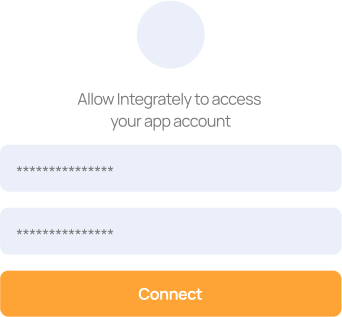
Connect Accounts

3
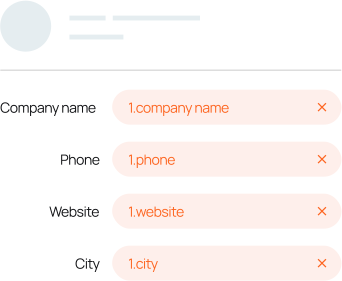
Automation is ready
Connect Microsoft Office 365 + SalesBlink Now 
In Just 1 Click!
Price Comparison with Popular Alternatives
Popular Alternative
😐
750 Tasks
in $19.99
Integrately
😍
2,000 Tasks
in $19.99
Trusted by 42,000+ Customers
Highest Rated Integration Platform on G2
P
ProductHunt
Most upvoted product of the month
Connect Microsoft Office 365 + SalesBlink Now
In Just 1 Click!





Didn't find the answer you were looking for?
No worries — just send us a message and we’ll get back to you as soon as possible.
Want to automate something else in your workflow?
You Can Also Connect Microsoft Office 365 or SalesBlink With 1500+ Other Apps

Popular Microsoft Office 365 Integrations
See All
Microsoft Office 365 Integrations
Microsoft Office 365 Integrations
No popular apps found

Popular SalesBlink Integrations
See All
SalesBlink Integrations
SalesBlink Integrations
No popular apps found

